
By default, the Quick Launch bar is not available in Windows 7, 8, 8.1, 10 & 11. Pinning programs or apps to the taskbar is the new method. However, you can follow the steps in this article to restore the Quick Launch bar and the Show Desktop button as it was in Microsoft Windows Vista and XP. I used these methods for years, until I got older and found it was just easier to see the larger Pinned icons. You style your computer the way you like it.
1. Right-click an empty area of the taskbar, point to Toolbars, and then click New Toolbar.
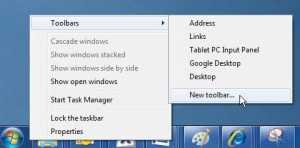
2. In the dialog box, copy and then paste the following folder name to the Folder box, and then click Select Folder:
Windows 7
%AppData%\Microsoft\Internet Explorer\Quick Launch
Windows 8/8.1 & Windows 10
%AppData%\Microsoft\Internet Explorer\Quick Launch
Windows 11
Same process with extra steps:
- Right-click taskbar → Taskbar settings (opens Settings)
- Go back to desktop, right-click taskbar → Show more options (this is the Win 11 context menu expansion)
- Toolbars → New toolbar
- Navigate to:
%AppData%\Microsoft\Internet Explorer\Quick Launch - Click “Select Folder”
- The Quick Launch appears on taskbar
- Right-click taskbar → Uncheck “Lock taskbar”
- Drag Quick Launch to position
- Lock taskbar again
Note that on Windows 10/11, you will have to keep the Taskbar Search Icon set to HIDDEN.